The dashboard
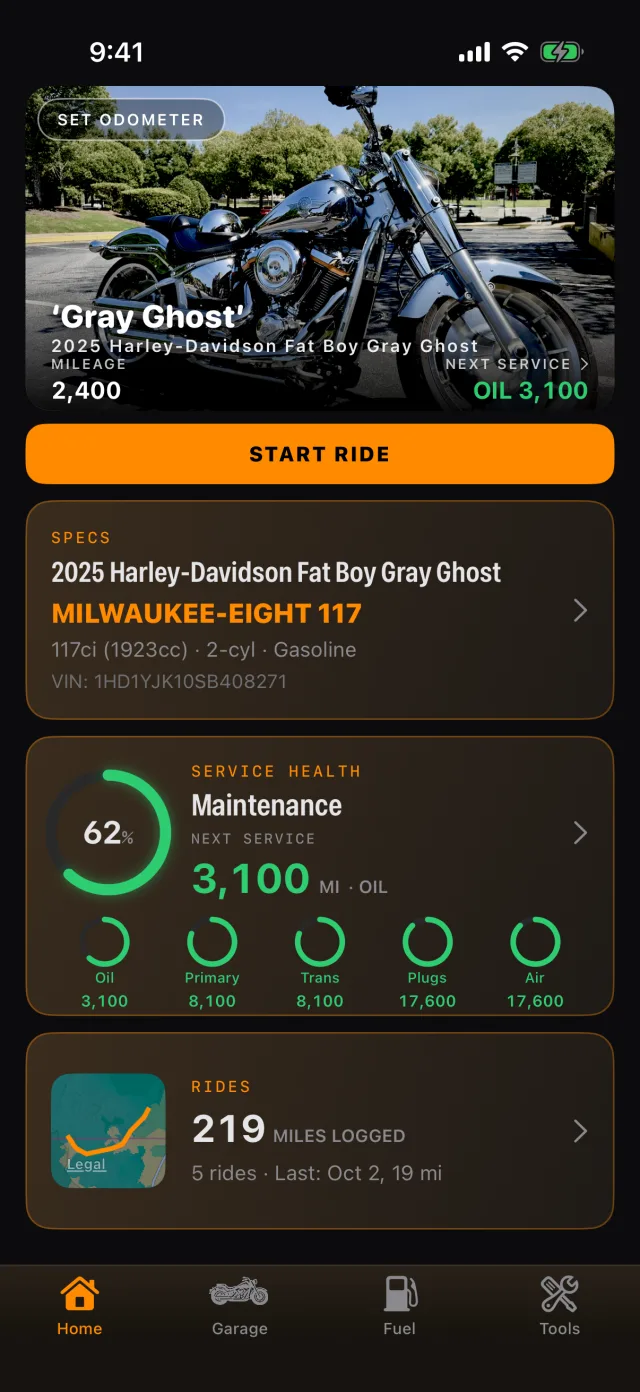
This is the screen RIDR opens on. One bike at a time, head to foot: the photograph, the odometer, the ride button, and three cards.
Reading it
- The photo carries the bike's nickname, its mileage, and the next service due.
- START RIDE begins recording. It is the one control on this screen that does something irreversible-feeling, so it is the one that is hard to miss.
- SPECS shows what RIDR knows about the machine — engine, VIN, fluid capacities, factory intervals.
- SERVICE HEALTH is a single percentage for the whole bike. It is the worst tracked interval, not an average: if the oil is due and everything else is fresh, the ring reads the oil. Under it, one small ring per interval with the miles each has left.
- RIDES totals what you have recorded and shows the last one.
Tip: When something is due or overdue, a row of chips appears under the photo. Tap a chip to go straight to that interval on the schedule.
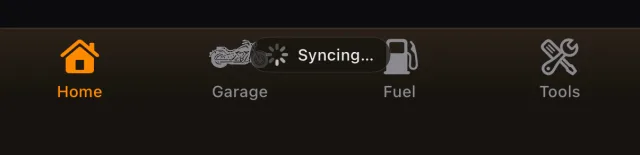
The four buttons along the bottom
They are not tabs — nothing switches underneath you.
- Home scrolls back to the top of this screen.
- Garage opens the bike switcher.
- Fuel opens the fuel log for the bike you are on.
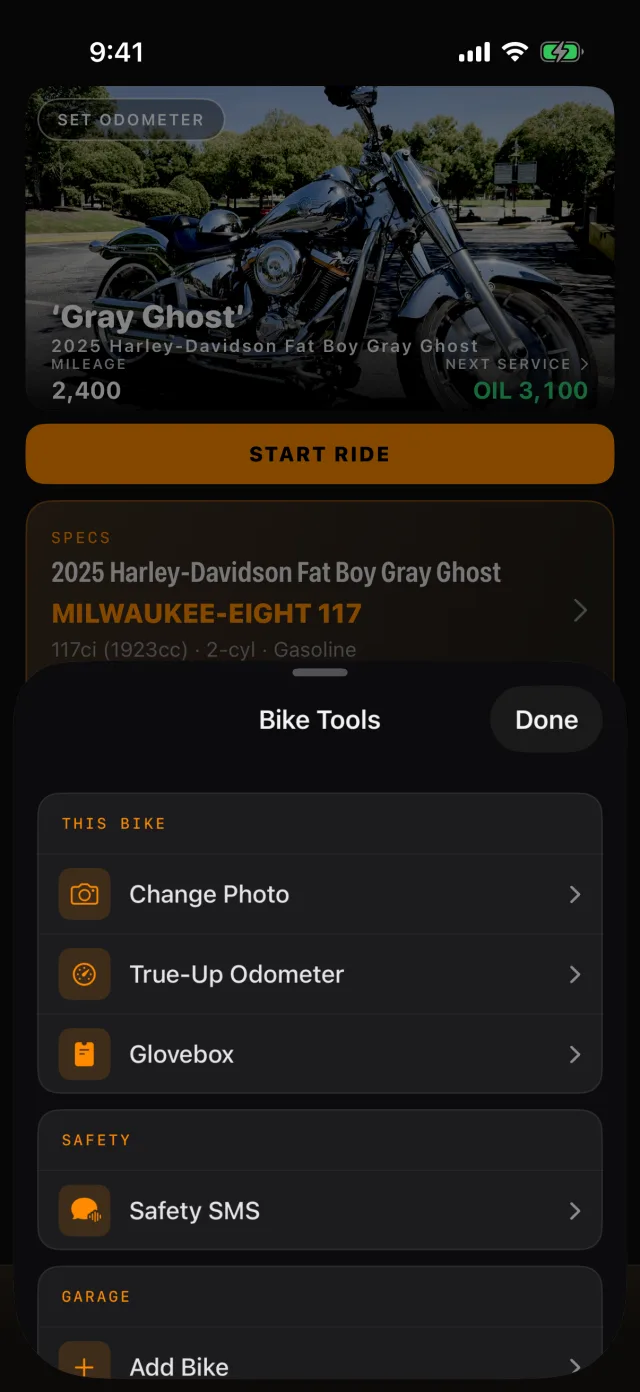
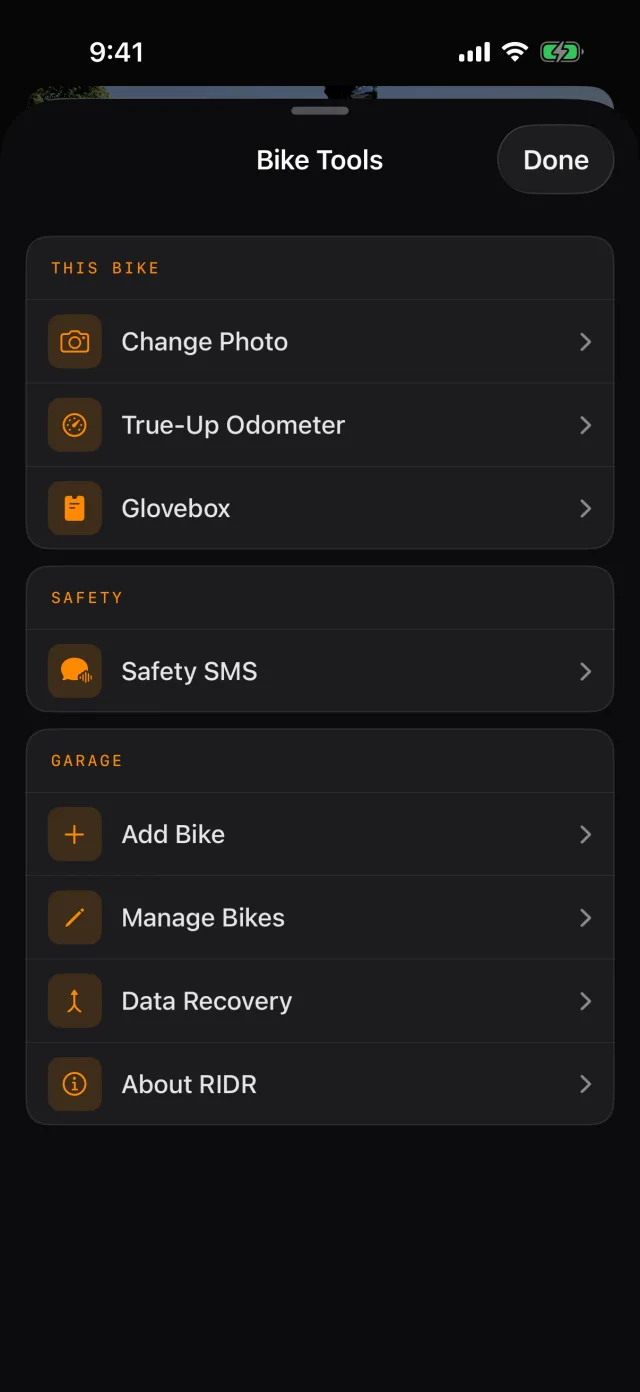
- Tools opens everything else: the bike's own photo and odometer, the glovebox, Safety SMS, and the whole garage.
Switching bikes
Swipe left or right across the dashboard, or open the garage.
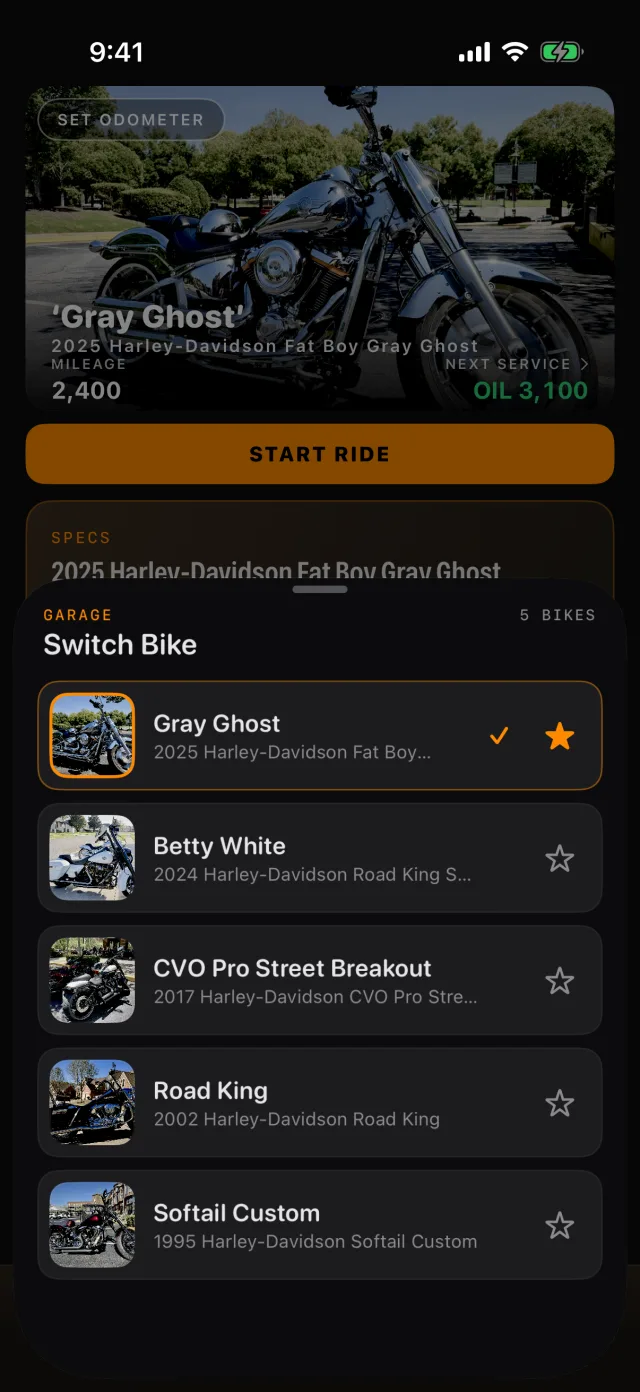
- Tap Garage.
- Tap a bike to make it active. Its history, mileage, fuel and schedule all follow.
- Tap the star to pin a bike to the top of the list.
Tip: The free tier holds one bike. A RIDR Pro subscription holds as many as you own, each with its own history.
Correcting the odometer
RIDR only knows about the miles you record. After a ride you did not log, tell it where the odometer actually is.
- Tap SET ODOMETER on the photo, or the mileage figure itself, or open Tools and choose True-Up Odometer.
- Type the reading and tap Set.
Every interval recalculates from the new number.
Shot from RIDR 3.17 (build 125) · 7 October 2026