The garage
Managing the bikes you have
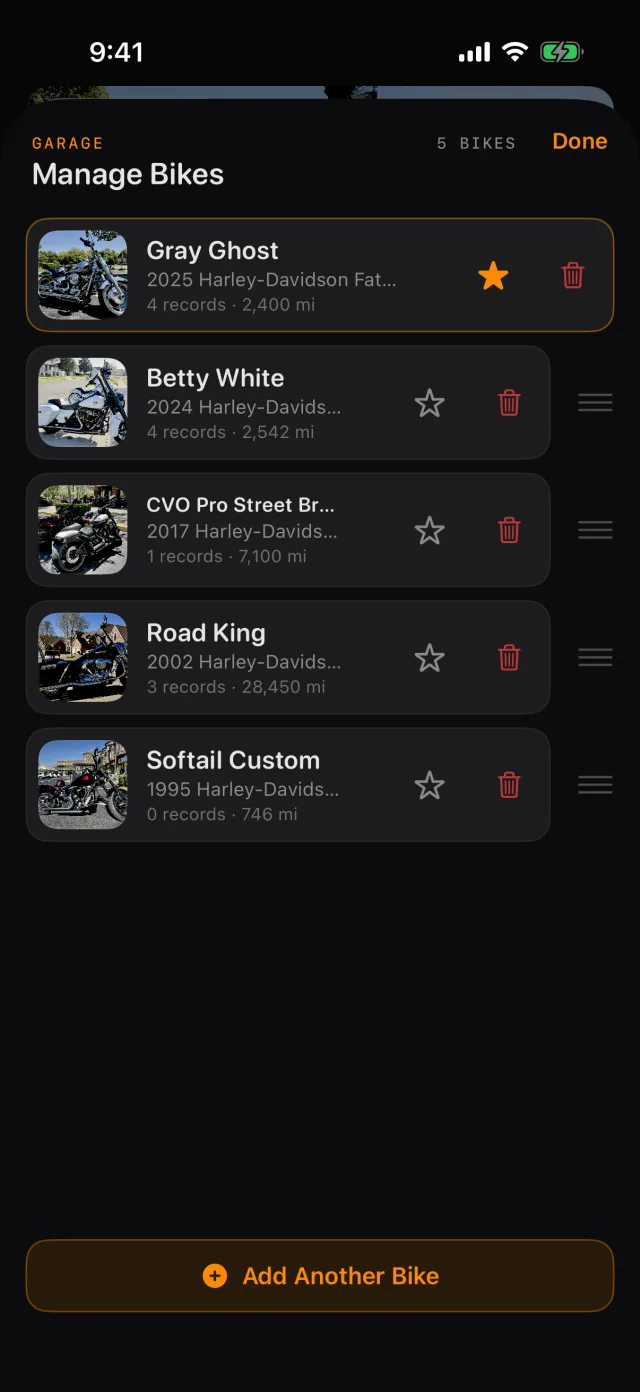
- Tap Tools, then Manage Bikes.
- Tap a bike to edit it.
- Tap Add Another Bike to add one more.
- Tap the trash button on a row to remove a bike. RIDR asks first, and says plainly that the bike's service records and glovebox documents go with it.
Editing a bike
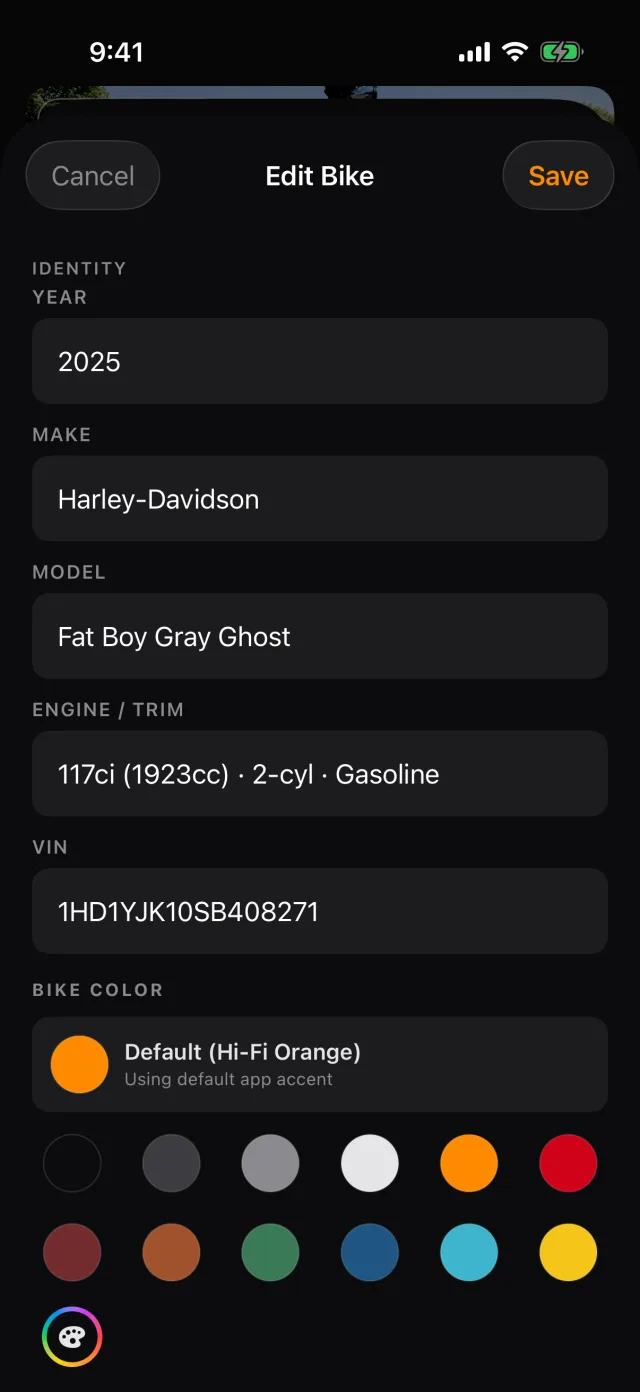
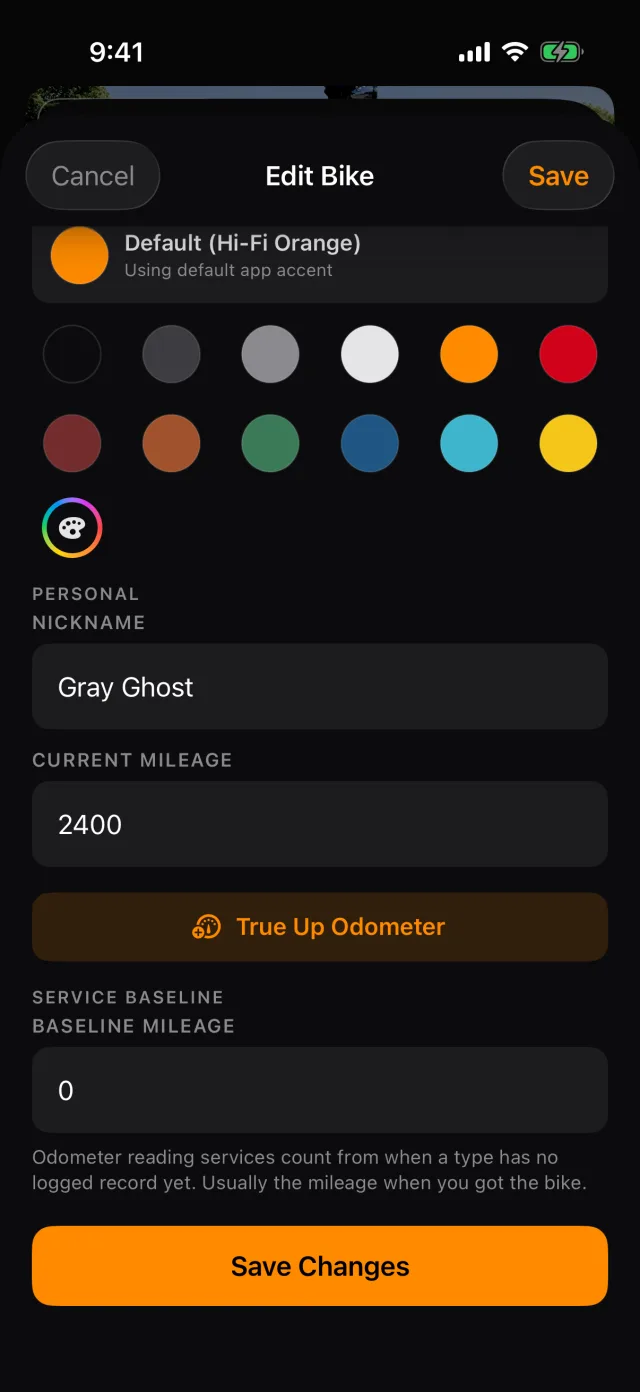
- Change the nickname, the odometer or the color.
- True Up Odometer is here too, for when the number has drifted.
- The service baseline is the mileage RIDR should measure intervals from. On a bike you bought used with no history, set it to the odometer reading on the day you got it, so RIDR does not report every service as decades overdue.
- Tap Save Changes.
What RIDR knows about the machine
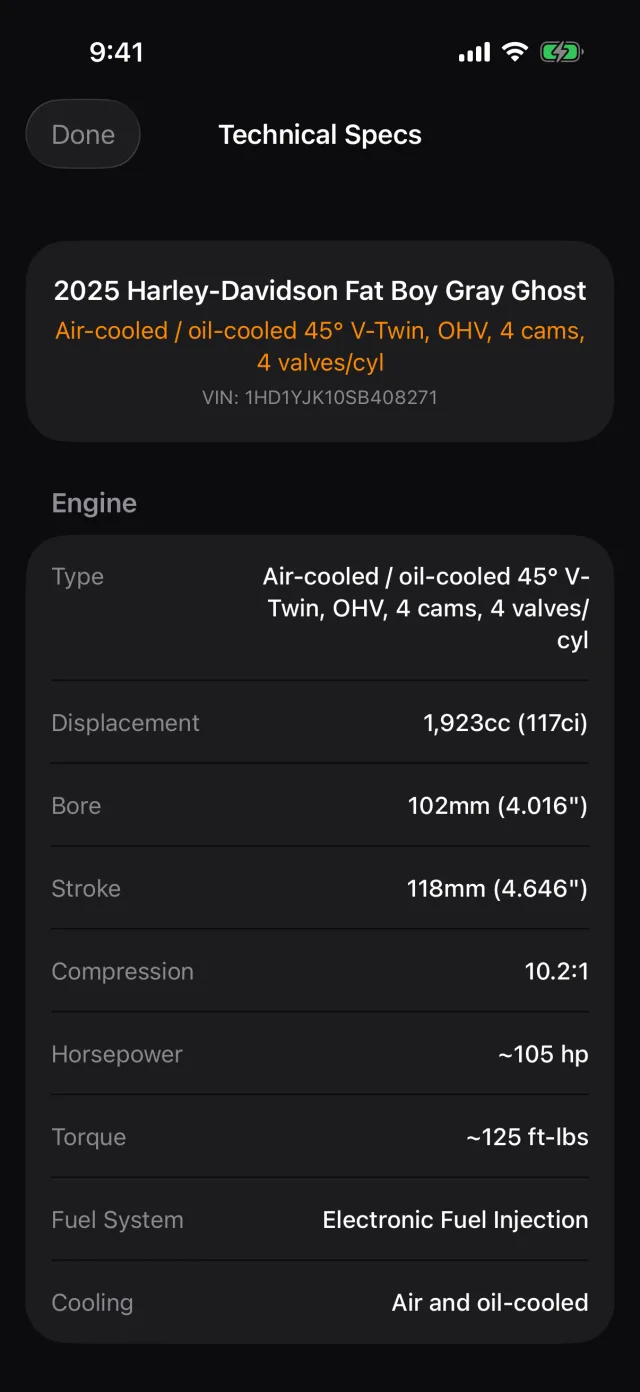
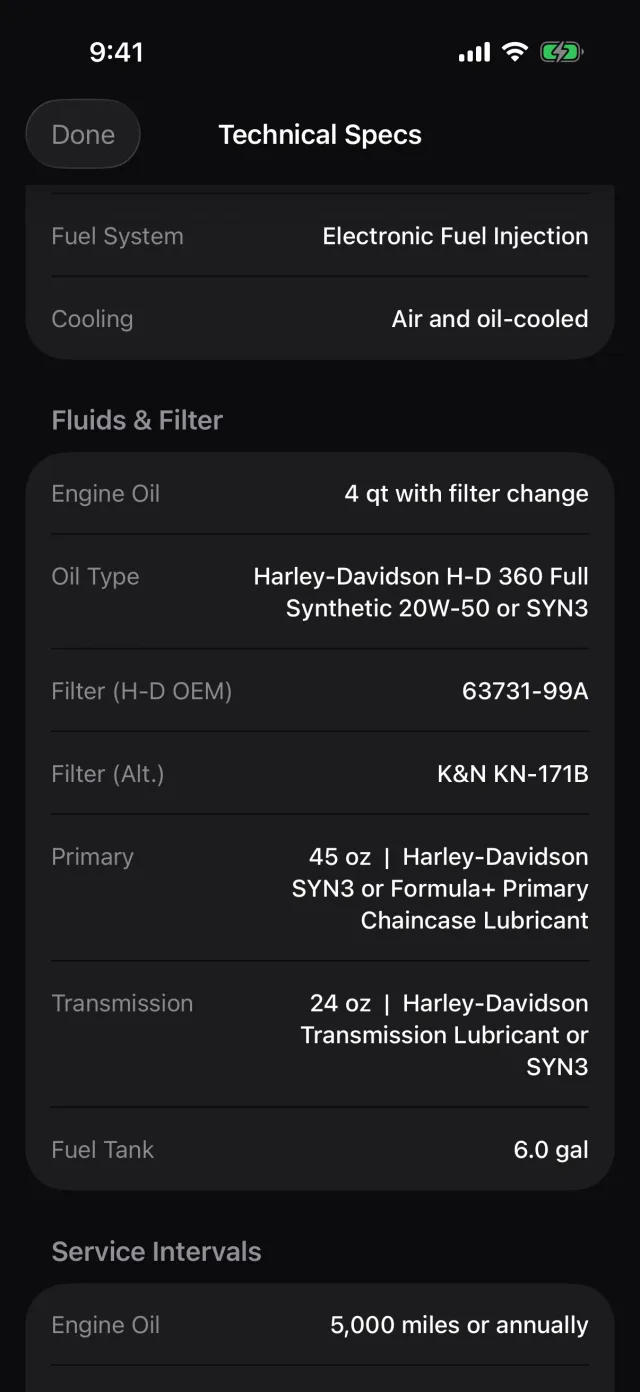
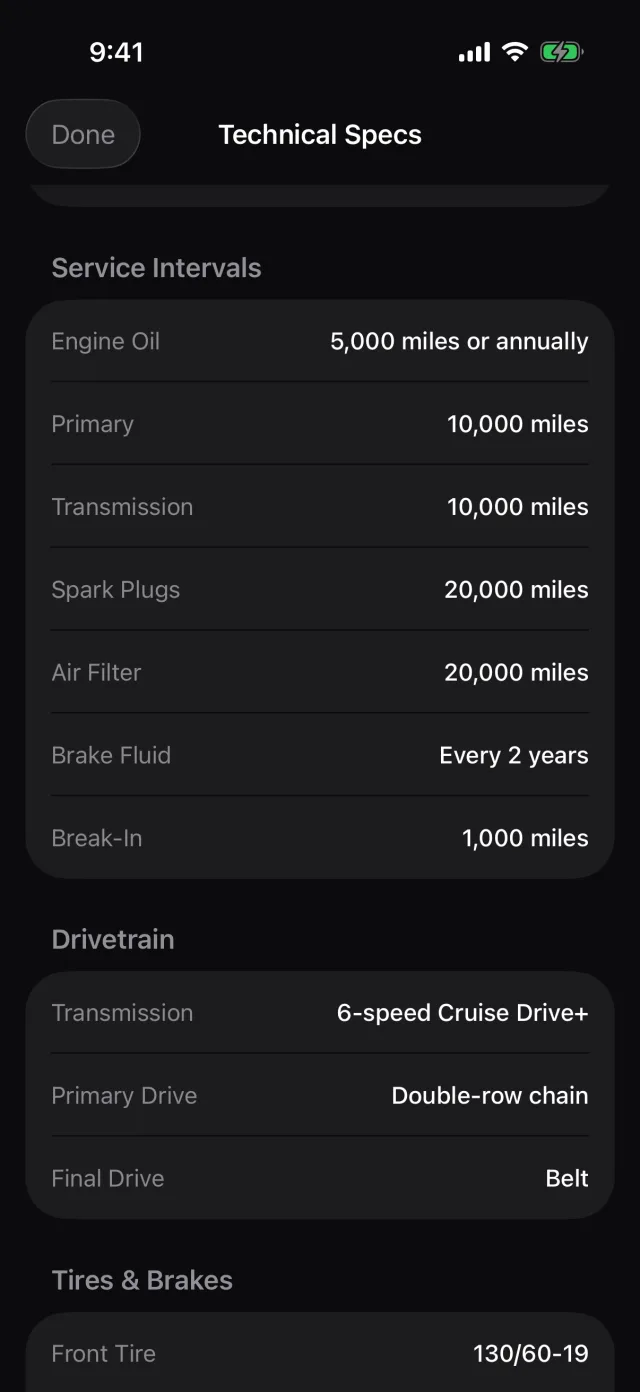
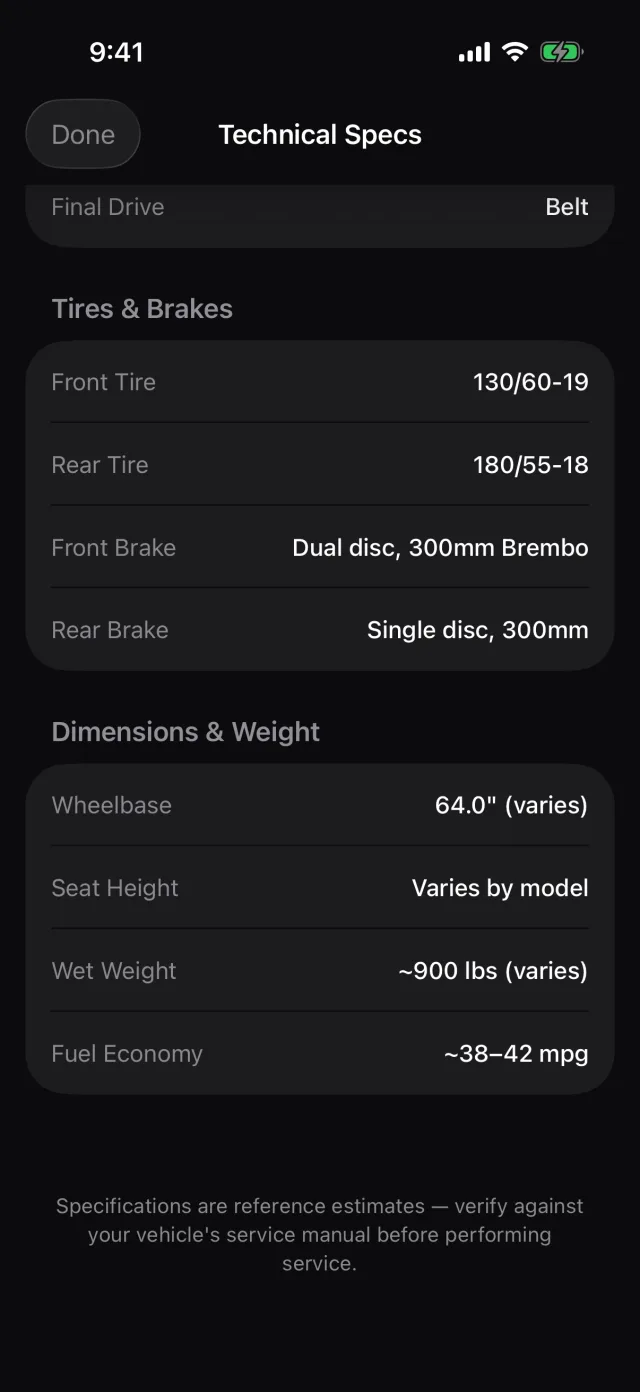
Tap the SPECS card on the dashboard. The spec database covers 42,227 machines from 603 makes, going back to 1894. Where RIDR has the factory figures it fills them in: oil capacity, filter part number, interval mileages, tyre sizes.
Tip: If a factory interval is wrong for how you ride, change it. Open the service schedule, tap the item, and type your own number — RIDR shows you what the factory said next to it.
Shot from RIDR 3.17 (build 125) · 7 October 2026