Riding
Recording
- Tap START RIDE on the dashboard.
- The ride screen opens with a speedometer, distance, time, top speed and a map drawing your line as you go. Tap Start Ride.
- Put the phone away. RIDR keeps recording with the screen off, which is what the background location permission was for.
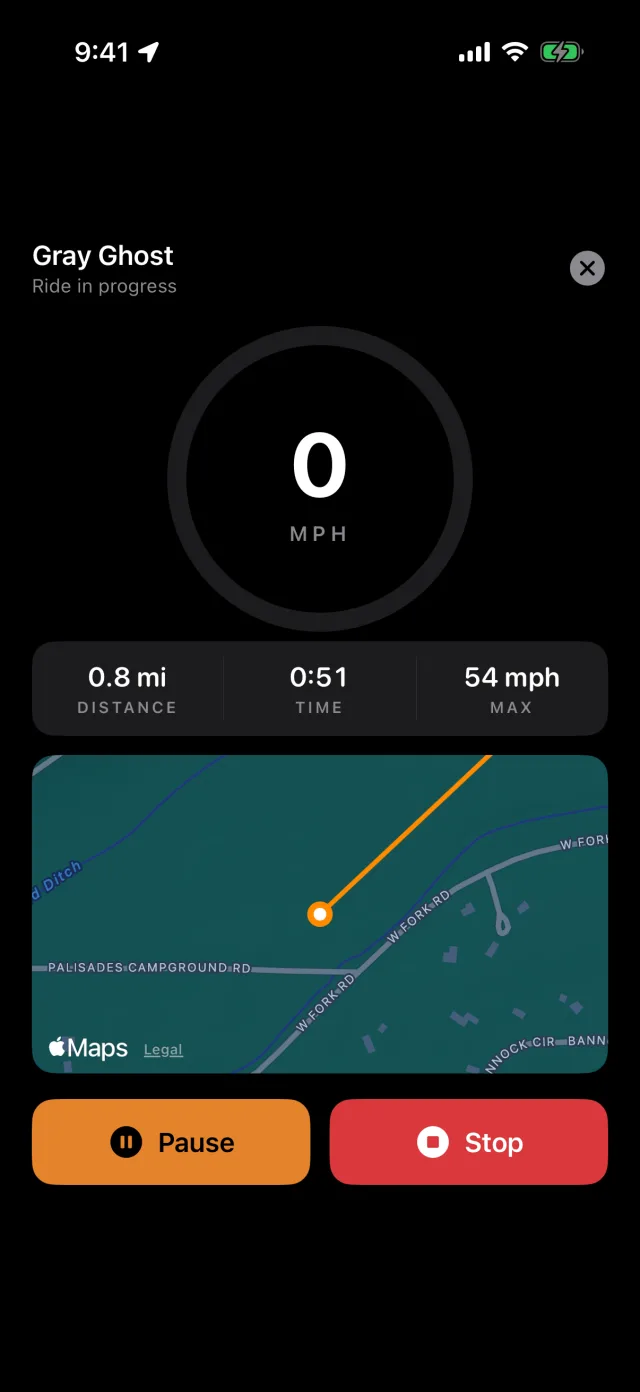
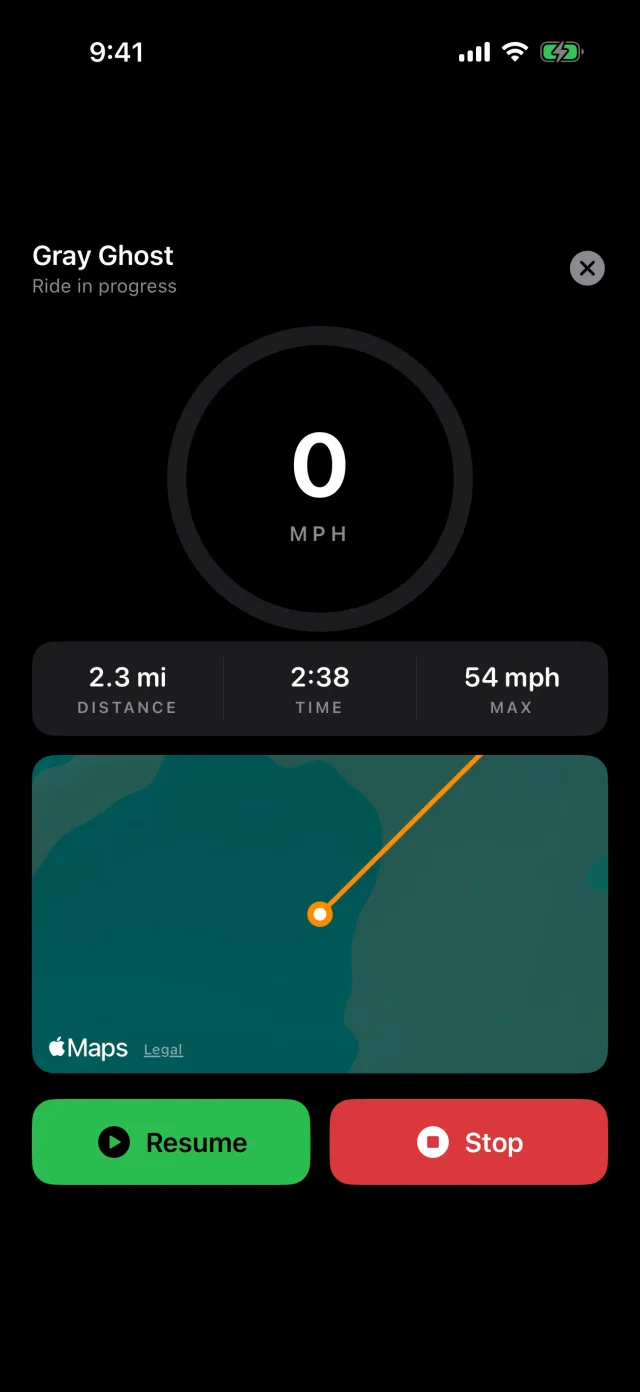
- Pause stops the clock and the distance without ending the ride — for fuel stops and lunch. The elapsed time freezes rather than ticking on, because a paused ride that kept counting would be a lie.
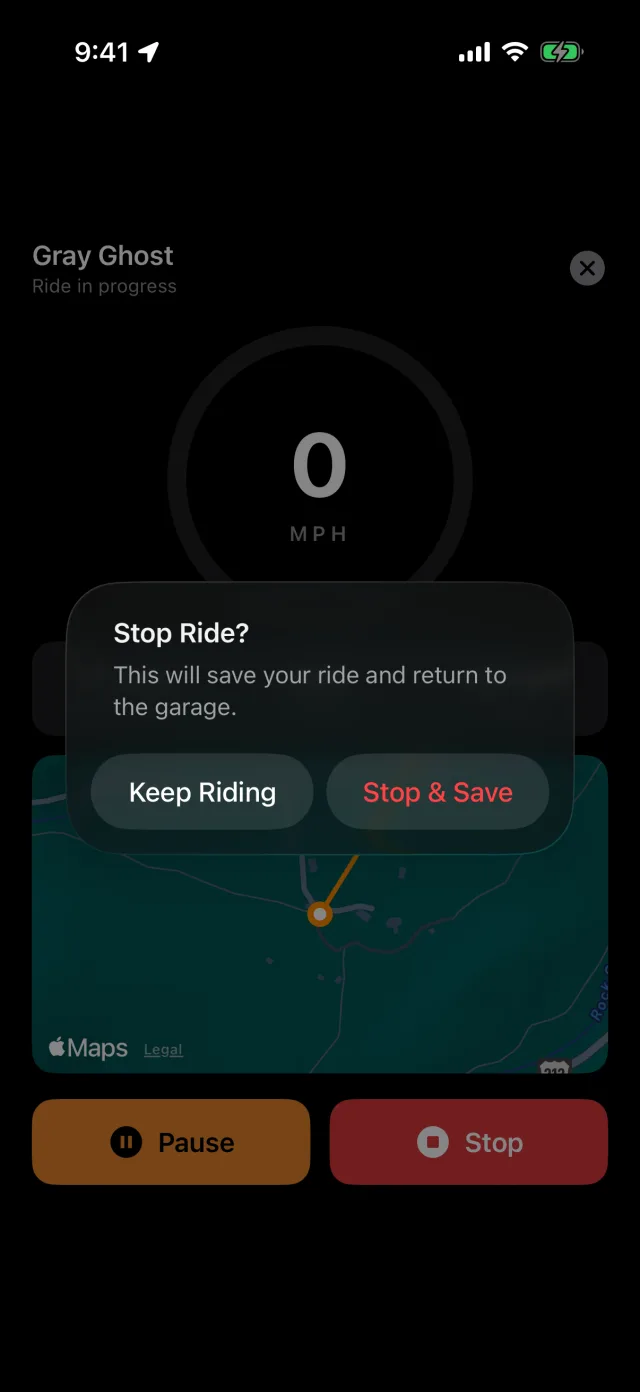
- Stop asks before it saves.
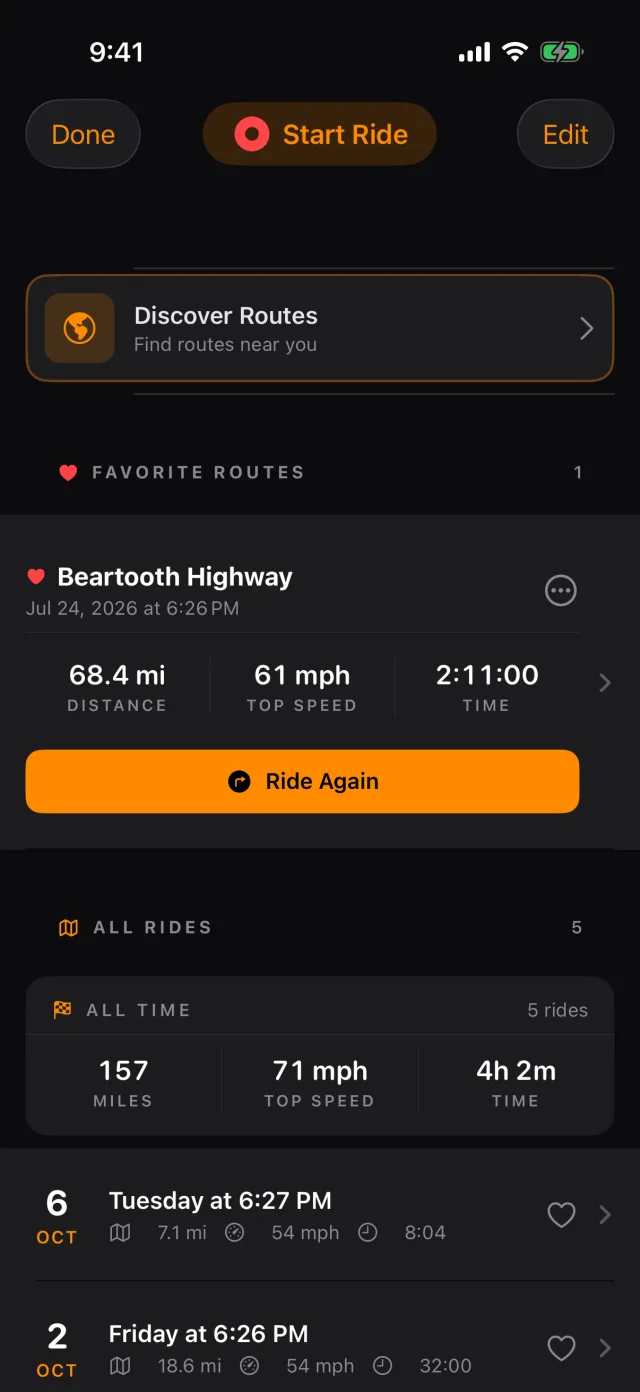
The saved ride is waiting in the ride list.
Tip: If you stop moving for a few minutes, RIDR asks whether you are still riding rather than deciding for itself.
While a ride is running
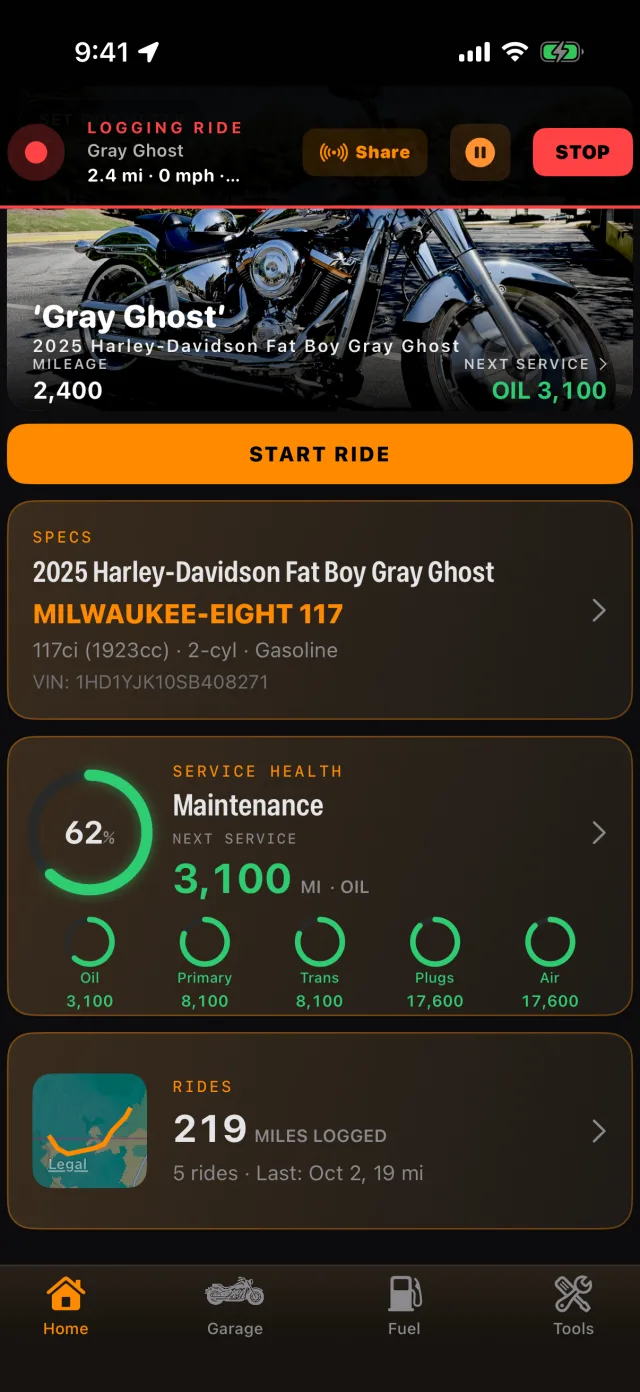
Leave the ride screen and the dashboard carries a banner. Everything you need is on it, so you never have to go hunting for a running ride.
Sharing a ride as it happens
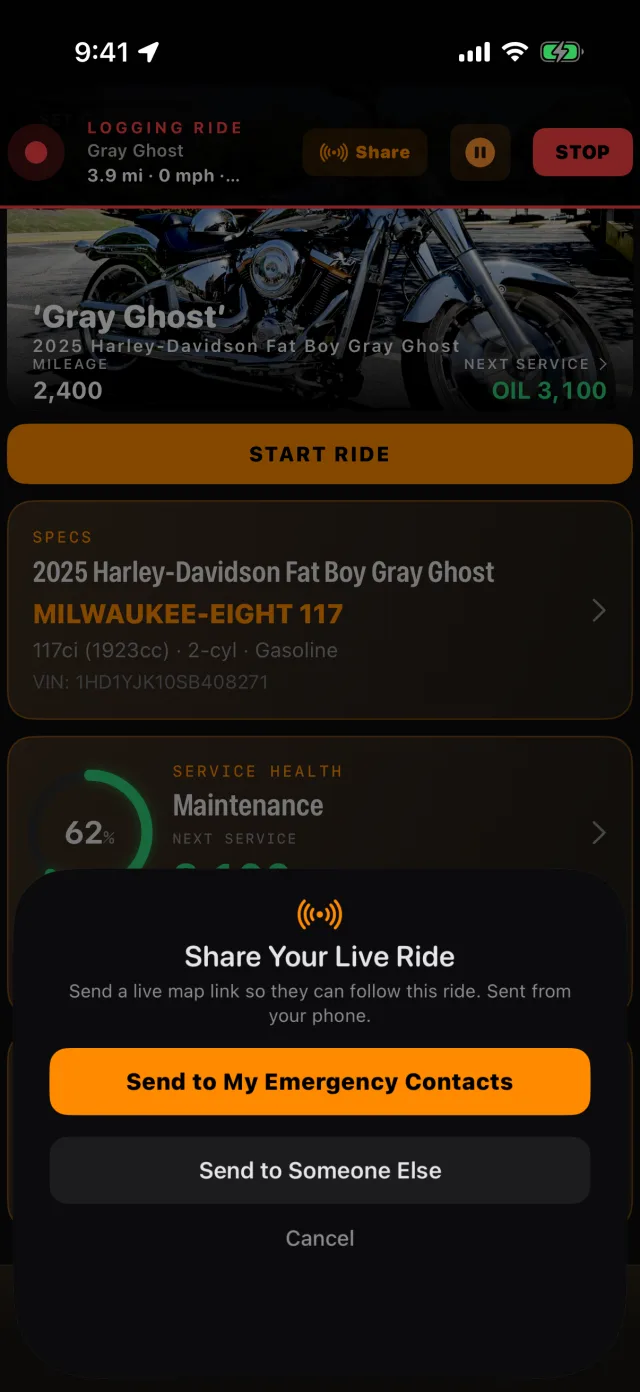
- Tap Share on the banner.
- Send to My Emergency Contacts opens Messages with your saved contacts and the link already in it.
- Send to Someone Else hands the link to the normal share sheet.
The link shows a live map of where you are while the ride is running. It is sent from your phone, to people you choose.
Tip: Live ride sharing is part of RIDR Pro.
Afterwards
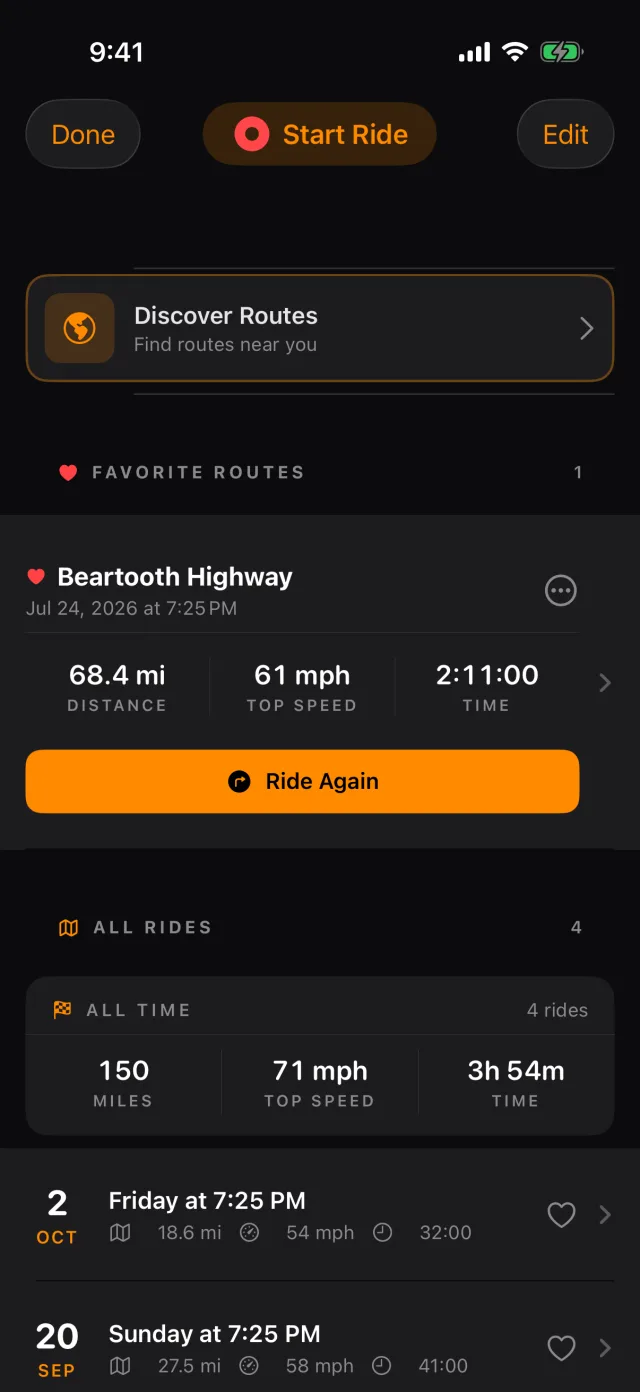
- Tap the RIDES card on the dashboard.
- Tap a ride to open it.
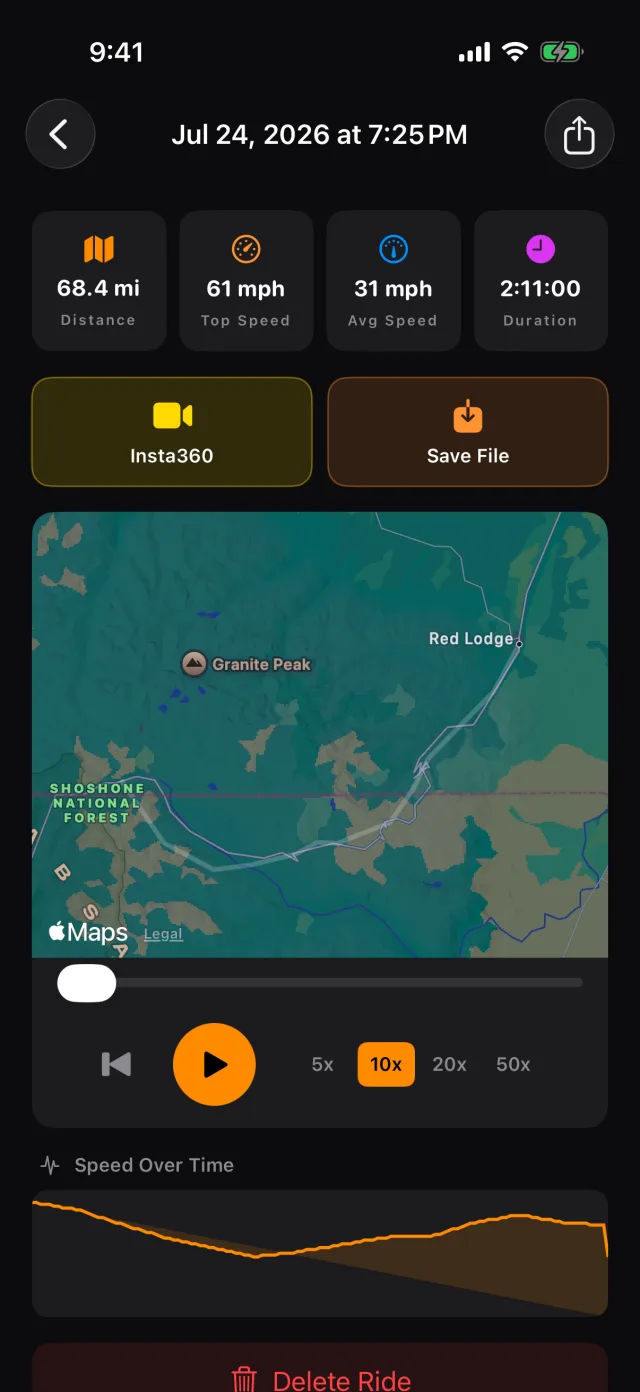
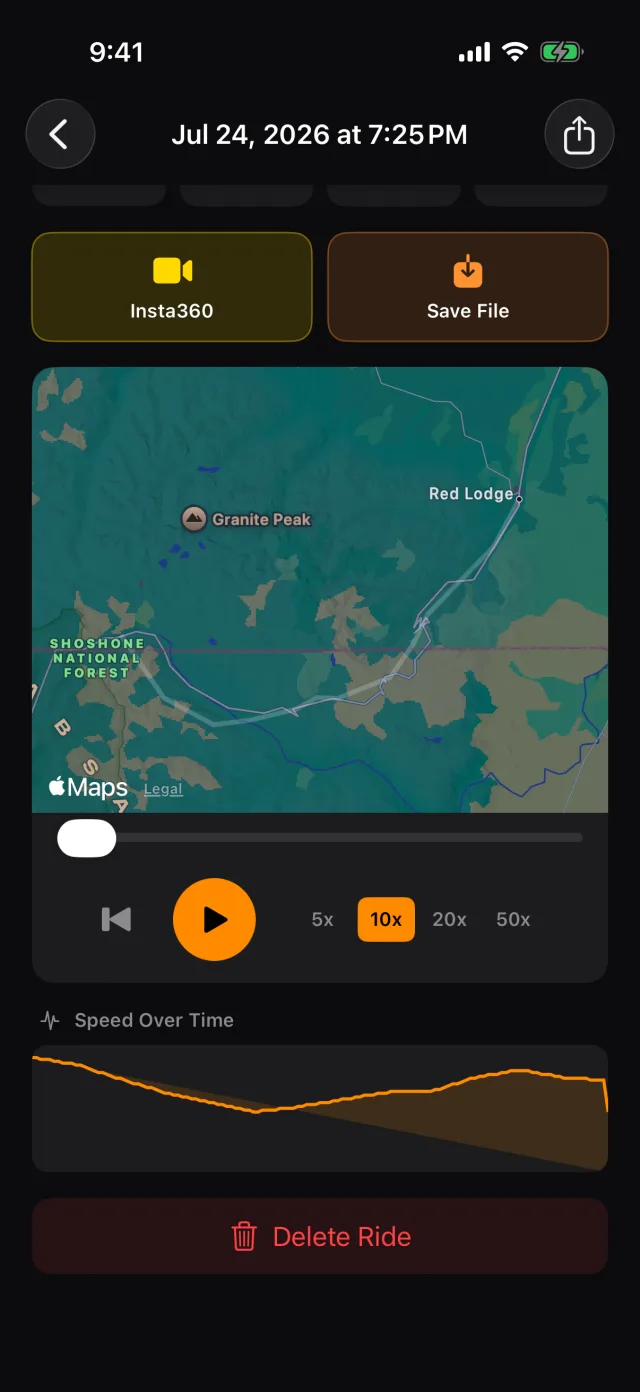
- Swipe a ride left to delete it. Favourite one and it gets its own section, a name you choose, and a Ride Again shortcut.
- The export button writes a GPX file of the route.
Tip: GPX export is part of RIDR Pro. Recording rides is free.
Finding roads
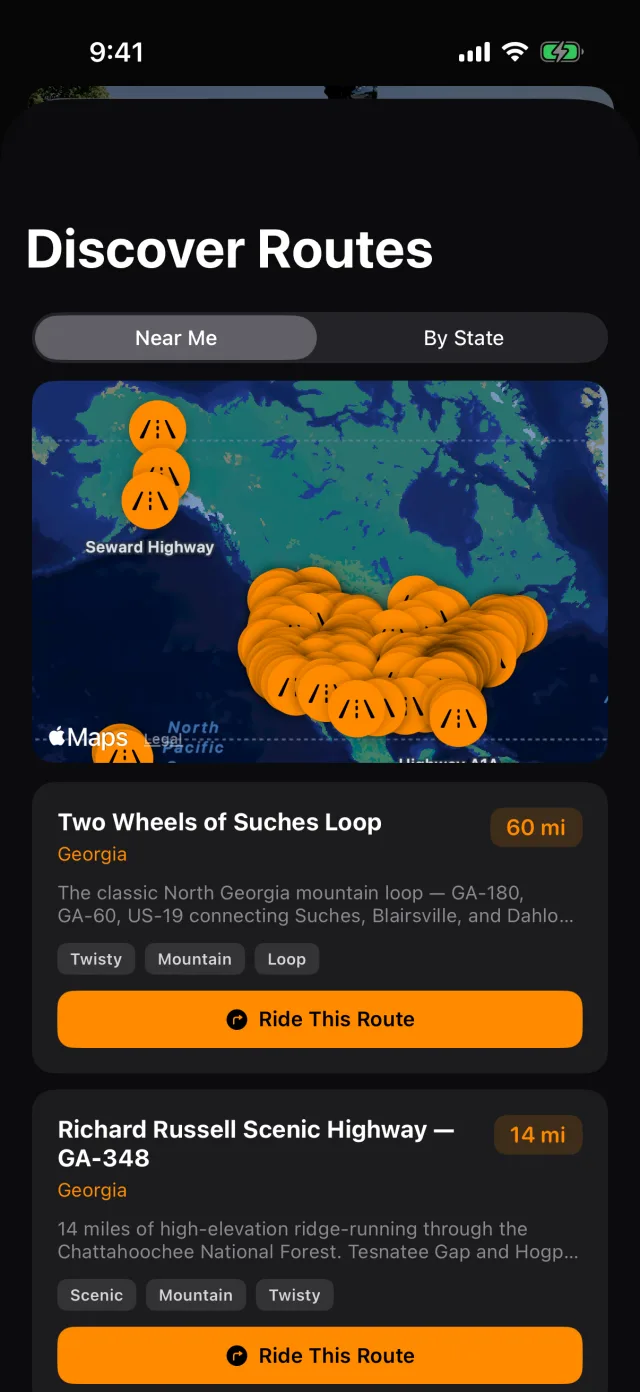
- Open the ride list and tap Discover Routes.
- Near Me finds roads around you. By State browses the whole book.
- Tap a route to read about it, then Ride This Route to open it in Apple Maps or Google Maps — with or without recording the miles against a bike.
Tip: The free tier shows the nearest 15 routes. RIDR Pro opens the whole book and the by-state browser.
Shot from RIDR 3.17 (build 125) · 7 October 2026