Safety
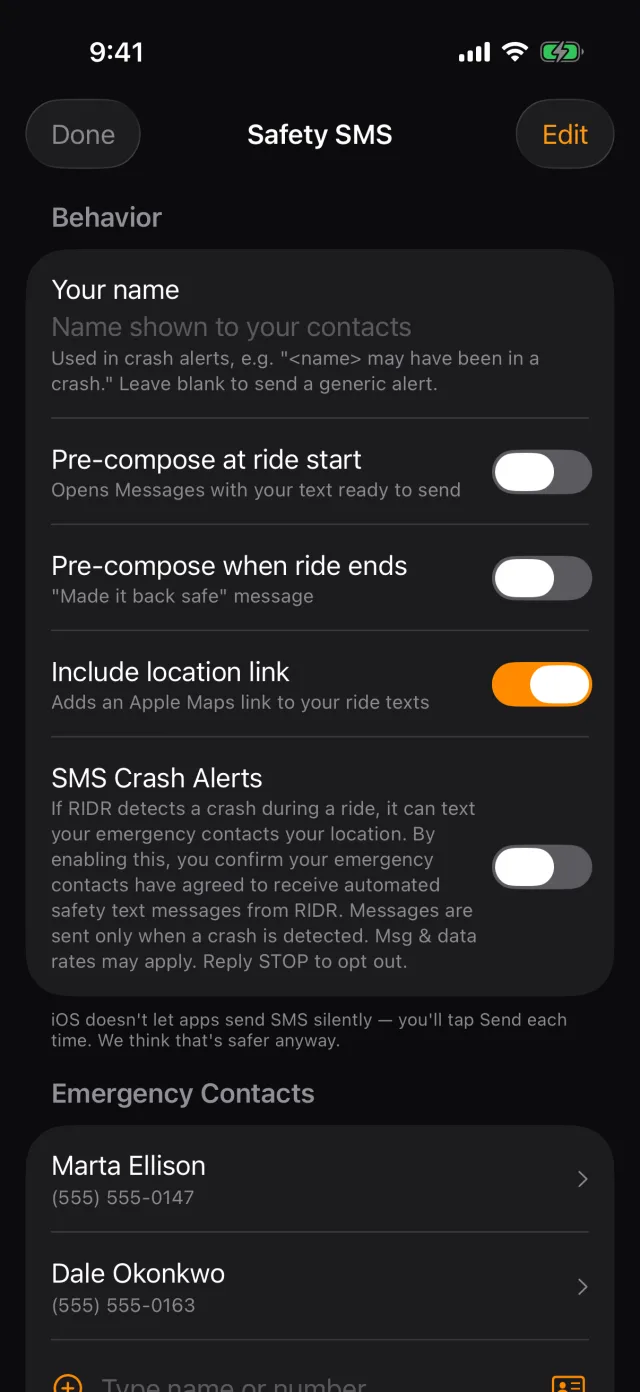
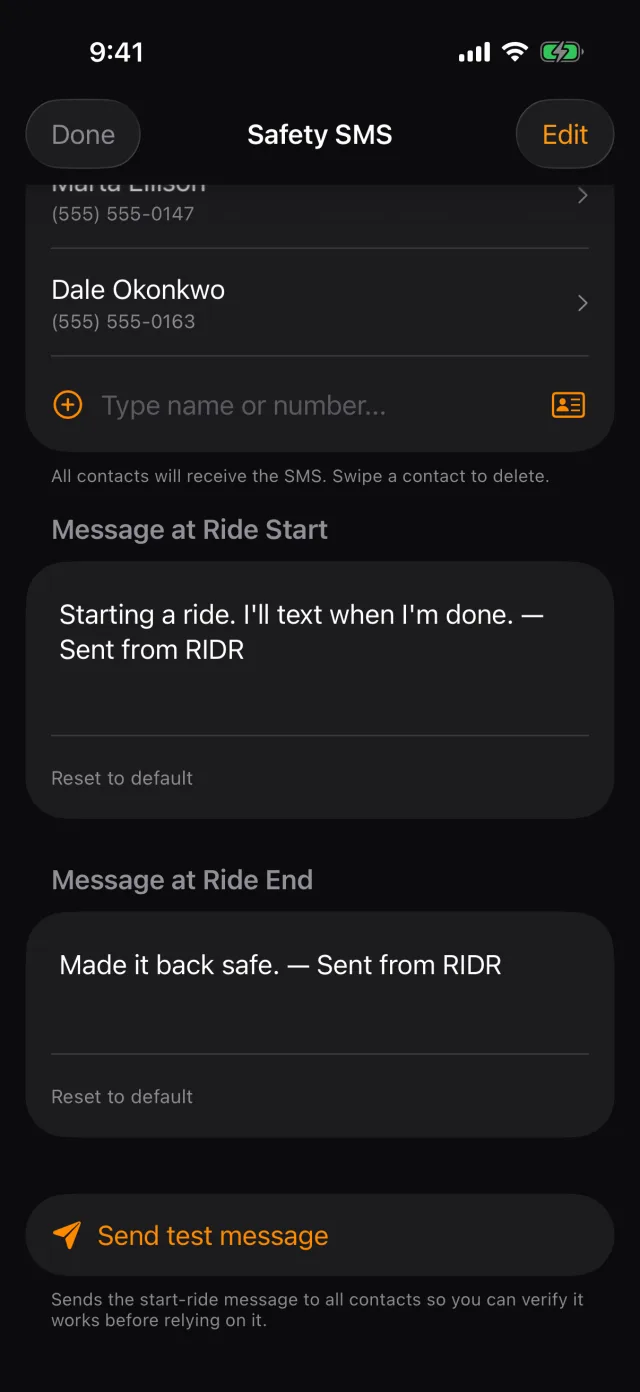
Tap Tools, then Safety SMS.
Who to tell
- Type the name your contacts should see. It goes in the message, so they know who it is about.
- Tap + beside Emergency Contacts and either pick someone from your contacts or type a name and number.
- Add as many as you like. They all get the message.
- Swipe a contact left to remove them.
Texts at the start and end of a ride
- Pre-compose at ride start opens Messages with your text ready when a ride begins.
- Pre-compose when ride ends does the same when you stop.
- Include location link adds an Apple Maps link.
Both are off until you turn them on. And RIDR never sends them by itself — iOS does not let an app send a text silently, so Messages opens with everything filled in and you tap Send. We think that is safer anyway.
- Edit the wording under Message Templates, or tap Reset to default to put it back.
Tip: Ride start and stop texts, and the templates, are part of RIDR Pro.
Crash alerts
If RIDR detects a crash while you are recording a ride, a full-screen countdown takes over the phone with a siren and an escalating buzz. You have 30 seconds.
- If you are fine, press and hold the cancel control for a second. A tap will not do it — a glove brushing the screen should not be able to silence a crash alert.
- If the countdown reaches zero, RIDR alerts the emergency contacts you saved, with your location.
SMS Crash Alerts controls how. Left off, RIDR opens Messages with the alert ready and you — or whoever reaches you — taps Send. Turned on, it sends automatically through RIDR's own relay with no tap at all, which is the point when nobody is in a state to tap anything.
Tip: Crash alerts are never charged for. They keep working on the free tier and they keep working after you cancel. They need at least one emergency contact saved: with none, there is nobody to alert and nothing is sent.
Shot from RIDR 3.17 (build 125) · 7 October 2026