Scanning and importing
Typing a service record off an invoice is the part nobody does. RIDR reads the invoice instead.
One receipt
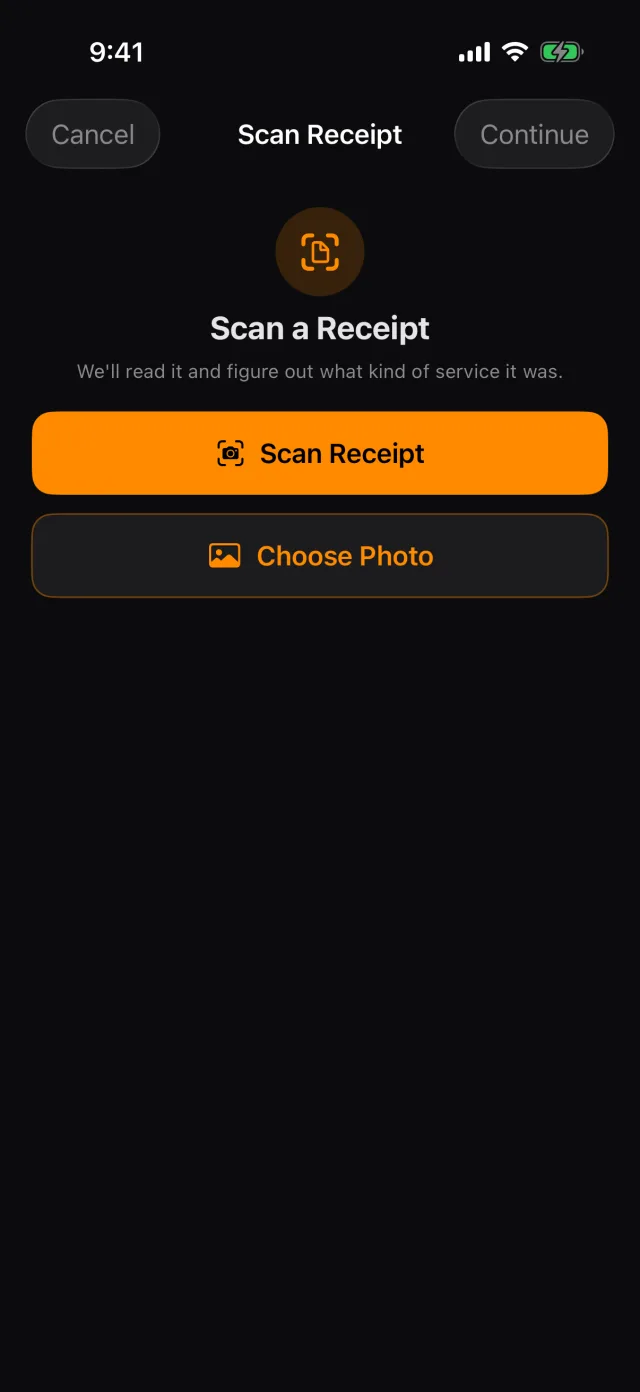
- Tap the SERVICE HEALTH card, then Scan Receipt.
- Tap Scan Receipt to use the camera, or Choose Photo to pick one you already took.
- RIDR reads the date, the mileage, the vendor, the total, the invoice number and the parts, then works out what kind of service it was and shows you its guess.
- The guess is pre-selected, not applied. If it is wrong, tap the right one.
- Tap Continue. The form opens already filled in, and you check it before saving.
Tip: Scanning is part of RIDR Pro. Everything it fills in can also be typed by hand on the free tier.
A whole dealer history
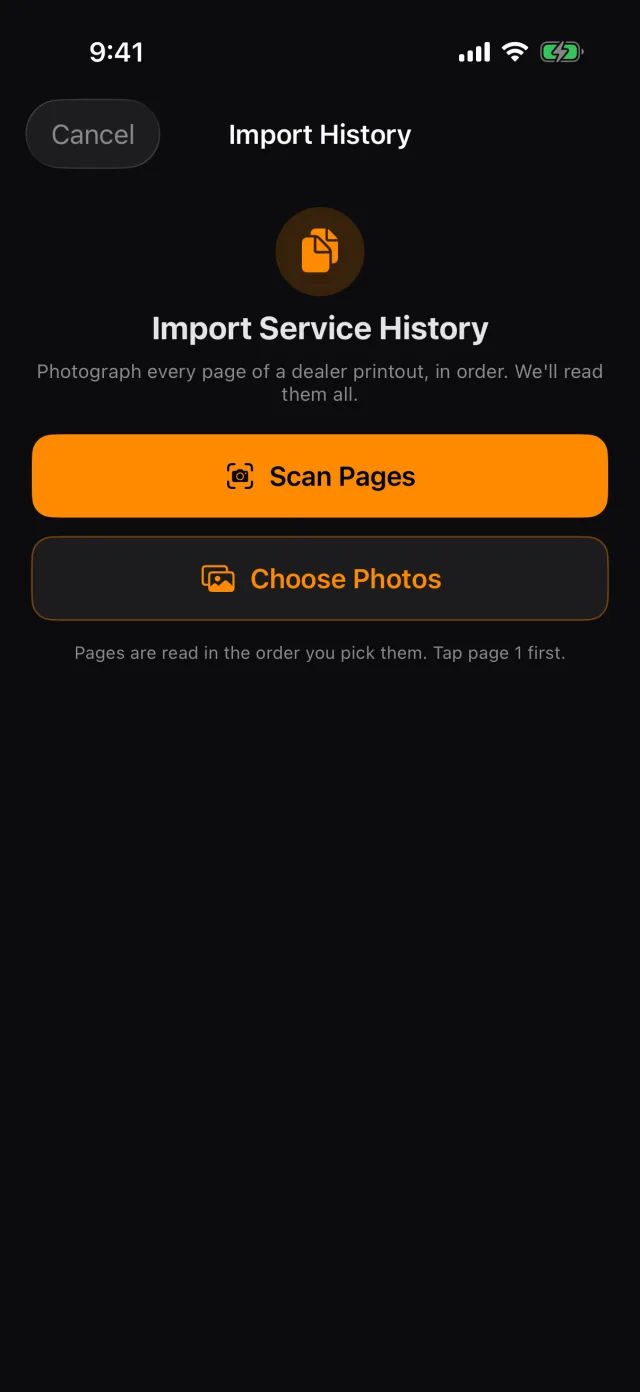
A dealer service printout is several pages describing many visits. RIDR takes the lot in one pass.
- Tap the SERVICE HEALTH card, then Import Service History.
- Tap Scan Pages to photograph them, or Choose Photos to pick them from the library. Pick page one first — they are read in the order you choose them.
- RIDR reads up to six pages at a time.
Checking it before it lands
This is the part worth slowing down for. RIDR shows you the pages first, in order, and will not let you touch the records until you have confirmed the order is right.
- Look at the page thumbnails. Each says how many visits start on it.
- Drag a page if it is out of order. The counts change as you drag, which is the quickest way to see that page order really does change what gets read.
- Tap Confirm Page Order.
- Now go through the visits. Anything the scan could not read is blank rather than guessed — a wrong date that looks right is worse than no date.
- Correct whatever needs correcting. Every field is editable, not just the empty ones: a value that was read is not necessarily a value that was read correctly.
- Tap Import.
Tip: A page that starts with no visit on it is a continuation of the page before. Those are the ones to check hardest, because nothing else in the document can tell RIDR where they belong.
RIDR skips visits it has already imported, matching on the dealer's own work order number, and tells you which ones it skipped by name rather than counting them.
What the import does not do
- It does not move your odometer. A service history is a statement about the past; the odometer is a statement about now.
- It keeps the pages. Every imported record points back at the page it came from, so you can show a buyer the printout as well as the list.
Shot from RIDR 3.17 (build 125) · 7 October 2026